Create a Local Ilum Cluster for Spark Development
A step-by-step guide on how to deploy a local development cluster in Ilum.
Why Create a Local Ilum Cluster?
Ilum enables multi-cluster architecture management from a single central control plane, automating complex configurations. You only need to register your cluster in Ilum and configure basic networking. To learn more about cluster management concepts in Ilum, read the architecture overview.
This guide covers the creation of a local cluster—a simulation environment launched inside the ilum-core server. This is ideal for testing Ilum's cluster management capabilities without requiring external Kubernetes infrastructure.
عرض
هنا يمكنك مشاهدة عرض توضيحي حول كيفية إضافة مجموعة محلية إلى Ilum الدليل في وضع ملء الشاشة
Step-by-Step Deployment Guide
Step 1: Navigate to Cluster Creation
- انتقل إلى العناقيد section in the Workload menu.
- انقر فوق الزر مجموعة جديدة زر.
Step 2: Configure General Settings
- Name & Description: Choose a descriptive name and description to help your team understand the cluster's purpose.
- Cluster Type: Set the cluster type to محلي.
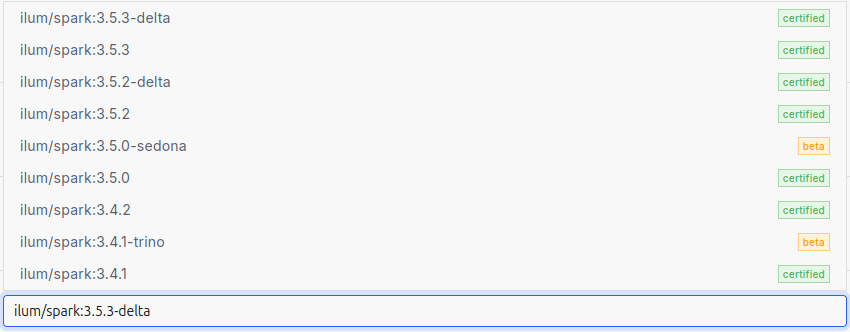
- Spark Version: Select the appropriate Spark image version.
The Spark version is defined by the container image used for Spark jobs. Ilum uses optimized images with pre-installed dependencies.
Here is a list of available Spark images:
Step 3: Define Spark Configurations
Any Spark configurations specified at the cluster level will be automatically applied to every job deployed on that cluster.
Why use this? It eliminates repetitive configuration. For instance, if you use أباتشي آيسبرغ as your Spark catalog, you can configure it once globally here. All Ilum jobs on this cluster will inherit these settings.
Step 4: Integrate Object Storage (S3/MinIO)
Ilum uses a default cluster storage to manage job files (both user code and Ilum internal artifacts). You can connect various storage providers: S3, GCS, WASBS, or HDFS.
In this guide, we will configure an S3 bucket using the ميني آيو storage that comes deployed by default with the Ilum cluster.
- انقر فوق الزر "إضافة مساحة تخزين" زر.
- Name & Type: Specify a name and select S3 as the storage type.
- دلو شرارةالضبط على
ملفات ILUM. This is the main bucket for Ilum Job files (default in the local MinIO). - دلو البياناتالضبط على
ملفات ILUM. This is required for using جداول Ilum (Spark format). - Endpoint & Credentials:
- نقطه النهايه:
إيلوم-مينيو:9000 - Access Key:
minioadmin - Secret Key:
minioadmin(These are the default credentials for the internal MinIO instance.)
- نقطه النهايه:
- Click the "إرسال" زر.
You can add multiple storage backends; Ilum Jobs will be configured to interact with all of them.
Step 5: Finalize Local Cluster Resources
Navigate to the local cluster configurations. Here, use the slider to allocate the number of Java threads used for the local cluster simulation.
Finally, click the إرسال button to create your cluster.
Step 6: Verify Deployment with a Test Job
To ensure your local cluster is functioning correctly, create and run a simple Spark job.
- Navigate to Cluster: Go to the العناقيد section and select your new local cluster.
- Create Service: Click New Service. Enter a name and select رمز as the type.
- Launch Editor: Find your new service in the list and click أعدم.
- Run Spark Code: In the code panel, paste the following Scala code.
This script creates a simple DataFrame and writes it to the S3 storage we configured earlier.
// 1. Create sample data
val بيانات = Seq(("Alice", 29), ("Bob", 35), ("Cathy", 23))

// 2. Convert to DataFrame with defined columns
val مدافع = شراره.createDataFrame(بيانات).toDF("الاسم", "age")

// 3. Define output path (pointing to our MinIO bucket)
val s3Path = "s3a://ilum-files/output"

// 4. Write data to S3 in CSV format
مدافع.يكتب.format("csv").طريقة("الكتابة فوق").save(s3Path)
- نقر أعدم.
If the job completes successfully, your local Ilum cluster is correctly configured and ready for development!